
Modern Homelabs are becoming miniature data centers, hosting essential administrative services like Portainer, Grafana, and file managers. The primary challenge I faced was finding a secure and reliable way to access these critical admin services from outside my home network without exposing my local infrastructure to the public internet. Traditional methods, such like port forwarding, are risky because they invite constant port scanning and malicious attacks. This was a risk I needed to eliminate.
My main solution was to build a three-layer security infrastructure based on the Zero-Trust security model. The three core technologies integrated were Traefik as the dynamic Reverse Proxy, Authelia to implement centralized Single Sign-On (SSO) and mandatory Two-Factor Authentication (2FA), and Netbird to serve as the Zero-Trust VPN for secure remote access.
The key result of this project is a fully protected infrastructure: all access to administrative services now requires 2FA (enforced by Authelia), and all remote access is strictly limited to the encrypted, private Netbird network. This setup completely removes the need to open any inbound ports (like 80 or 443) to the public internet, drastically minimizing the attack surface.
I. Project Goals & Requirements #
This project was executed to establish an accessible, yet extremely secure, Homelab environment.
Project Goals: #
-
Ensure that all administrative services exposed via Traefik (e.g., Portainer, Grafana) must use Two-Factor Authentication (2FA) via Authelia.
-
Implement Centralized Single Sign-On (SSO) so users only log in once to access all protected admin services.
-
Eliminate the need for any open inbound ports (port forwarding) to the public internet for administrative access, strictly adhering to the Zero-Trust model.
-
Provide a secure remote access solution (Netbird) that supports fine-grained access policies.
Key Components Involved: #
| Component | Role | Security Layer |
|---|---|---|
| Traefik | Dynamic Reverse Proxy & Load Balancer | Layer 1: Access & Routing |
| Authelia | SSO & Two-Factor Authentication Gateway | Layer 2: Authentication Perimeter |
| Netbird | Zero-Trust VPN / Mesh Overlay Network | Layer 3: Secure Remote Access |
| Redis | Authelia Session Storage | State Management |
| File Provider | Traefik Dynamic Configuration (YAML/TOML) | Configuration |
II. Technical Architecture #
This section details the technical core of the setup, focusing on the configuration methods.
1. Architecture Diagram #
This visual representation shows how the three security layers interact to create a multi-layered security perimeter.
flowchart

%% ===== LAYER 1: REMOTE ACCESS =====
A[User / Remote Device] --> B[Netbird Client] --> C[Netbird Mesh Network]

%% ===== LAYER 2: ROUTING & AUTHENTICATION =====
C --> D[Traefik Reverse Proxy]
D -->|ForwardAuth Request| E[Authelia SSO Gateway]
E -->|Auth Success / Fail| D
E -->|Read / Write Session| F[(Redis Session Store)]
E -->|Verify Credentials| G[(LDAP / User Directory)]

%% ===== LAYER 3: ADMIN APPLICATIONS =====
D --> H[Portainer]
D --> I[Grafana]
D --> J[Other Admin Apps]

%% ===== SUBGRAPHS =====
subgraph L1 [Layer 1: Zero-Trust VPN]
  A
  B
  C
end

subgraph L2 [Layer 2: Routing & Auth]
  D
  E
  F
  G
end

subgraph L3 [Layer 3: Admin Apps]
  H
  I
  J
end
Diagram Description: The remote access flow begins with a device connecting to the Netbird private network. The request is routed internally to Traefik. Based on its Dynamic Configuration, Traefik intercepts the request and calls the Authelia ForwardAuth middleware for authentication. Only upon successful 2FA authentication is the request sent to the intended Application Container.
2. Key Implementation Details & Why #
Implementing Authelia (SSO) using Traefik Dynamic Files #
The most professional approach for large Homelabs is to move Traefik’s routing logic out of Docker Labels and into separate Dynamic Configuration files (e.g., dynamic_config.yml).
Why Dynamic Files over Docker Labels?
I chose Dynamic Configuration files (using the Traefik File Provider) because they offer a clear separation of concerns (routing logic is separate from application deployment) and allow for easier management of complex middlewares, like Authelia, across many services. This is more scalable and professional than using many individual Docker labels.
To implement Authelia, I define the middleware in a dedicated file, say middlewares.yml, and then reference it in the routers.yml file for each protected service.
Snippet: middlewares.yml (Defining the Authelia ForwardAuth)
YAML
http:
  middlewares:
    # 1. Define the Authelia Middleware once
    authelia:
      forwardAuth:
        # Address pointing to Authelia's verification API endpoint
        address: "http://authelia:9091/api/authz/forward-auth"
        trustForwardHeader: true
        authResponseHeaders:
          - "Remote-User"
          - "Remote-Groups"
          - "Remote-Name"
          - "Remote-Email"
Snippet: routers.yml (Protecting Secure-App container using the Authelia Middleware)
YAML
http:
  services:
    portainer-svc:
      loadBalancer:
        servers:
          # 2. Point to the internal Portainer container address
          - url: http://secure-app:80

  routers:
    portainer-secure:
      # 3. Define the routing rule for Portainer
      rule: "Host(`secure.home.zrv.my.id`)"
      entryPoints:
        - websecure
      # 4. Apply the Authelia middleware defined above
      middlewares:
        - authelia@file
      service: portainer-svc
      tls:
        certResolver: cloudflare
This method makes it simple: to protect a new service, I just add a new router entry in routers.yml and apply the existing authelia middleware.
Snippet: configuration.yml (Configure Authelia Access Control Policy)
access_control:
  default_policy: 'deny'
  rules:
    # 5. Set domain and policy
    - domain: 'public.home.zrv.my.id'
      policy: 'bypass'
    - domain: 'secure.home.zrv.my.id'
      policy: 'two_factor'
Secure-App is now configured. On the Secure-App page, users should login with Authelia to access it.
Implementing Authelia (SSO) Integration with Portainer #
First configure Authelia as an OpenID Connect (OIDC) provider. This involves setting up the core OIDC parameters (like secrets and signing keys) and registering Portainer as a client application.
Add or modify the identity_providers: oidc: section in your Authelia configuration.yml file to include the following. Remember to replace all placeholder values.
YAML
identity_providers:
  oidc:
    # 1. Mandatory Core OIDC Configuration
    hmac_secret: 'VERY_STRONG_SECRET'

    # 2. JSON Web Key Set (JWKS) Configuration (For token signing)
    jwks:
      -
        key_id: 'authelia-key-rs256'
        algorithm: 'RS256'
        use: 'sig'

        key: |
          -----BEGIN PRIVATE KEY-----
          ...
          -----END PRIVATE KEY-----

        certificate_chain: |
          -----BEGIN CERTIFICATE-----
          ...
          -----END CERTIFICATE-----

    # 3. Register the Portainer Client
    clients:
      - client_id: 'portainer'
        client_name: 'Portainer'
        client_secret: '$pbkdf2-sha512$310000$c8p78n7pUMln0jzvd4aK4Q$JNRBzwAo0ek5qKn50cFzzvE9RXV88h1wJn5KGiHrD0YKtZaR/nCb2CJPOsKaPK0hjf.9yHxzQGZziziccp6Yng'
        public: false
        authorization_policy: 'two_factor'
        require_pkce: false
        pkce_challenge_method: ''
        redirect_uris:
          - 'https://portainer.home.zrv.my.id'
        scopes:
          - 'openid'
          - 'profile'
          - 'groups'
          - 'email'
        response_types:
          - 'code'
        grant_types:
          - 'authorization_code'
        access_token_signed_response_alg: 'none'
        userinfo_signed_response_alg: 'none'
        token_endpoint_auth_method: 'client_secret_post'
Now configure Portainer to use Authelia as a custom OAuth provider via its Web GUI.
| Portainer Field | Example Value to Enter |
|---|---|
| Client ID | portainer |
| Client Secret | |
| Authorization URL | https://auth.home.zrv.my.id/api/oidc/authorization |
| Access Token URL | https://auth.home.zrv.my.id/api/oidc/token |
| Resource URL | https://auth.home.zrv.my.id/api/oidc/userinfo |
| Redirect URL | https://portainer..home.zrv.my.id |
| User Identifier | preferred_username |
| Scopes | openid profile groups email |
| Auth Style | In Params |
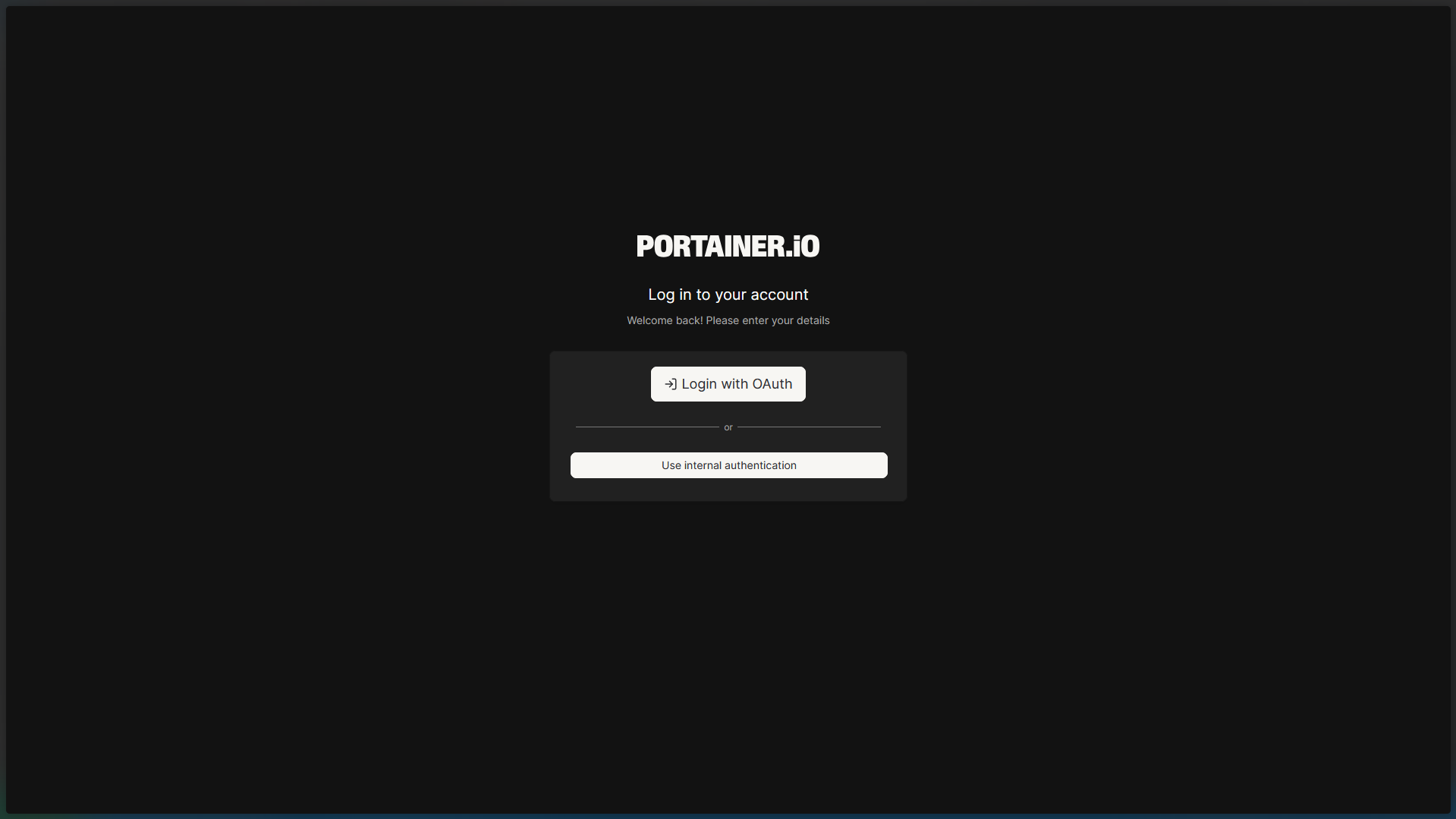
Portainer is now configured. On the login page, users should see a “Log in with OAuth” option that redirects them to your Authelia portal for authentication.
Session Management: Why Redis is Essential #
I use Redis as a backend store for Authelia sessions instead of relying on local file storage. This decision is critical because it ensures Statelessness: if the Authelia container needs to be restarted, upgraded, or moved, the active user sessions are not lost. This guarantees a smooth, uninterrupted Single Sign-On (SSO) experience for the user and significantly improves the overall stability of the authentication layer.
Remote Access: Netbird for Zero-Trust #
For access to these sensitive admin services from outside the house, I exclusively use Netbird.
-
Zero-Trust Principle: Netbird establishes an encrypted, private mesh network between all authorized devices. This network is completely separate from the public internet.
-
Security Advantage: By forcing all remote access through Netbird, Traefik and Authelia are only accessible from within this trusted, private overlay network. This makes it impossible for public internet scanners or bots to even see the services, effectively nullifying the risk of external port exposure.
💡 I chose Traefik because its Dynamic Configuration via the File Provider allows us to manage complex security rules (like Authelia ForwardAuth or Middlewares) centrally, ensuring Zero-Downtime changes and better code management compared to scattered Docker Labels.
III. Results & Metrics (The Impact) #
The success of the project is defined by tangible security improvements and stability.
Key Security Improvements: #
| Metric | Before Project | After Project | Impact |
|---|---|---|---|
| Admin Access Method | Open via Port Forwarding (High Risk) | Only via Netbird VPN (Zero-Trust) | 100% Perimeter Security Improvement |
| 2FA Requirement | Optional / Per-Application Setting | Mandatory for ALL Admin Services (Authelia) | Significantly Reduces Account Takeover Risk |
| SSO Integration | Separate Login | Authelia SSO for Portainer | Faster access and unified authentication |
| Configuration Model | Scattered Docker Labels | Centralized Dynamic Files | Increased Scalability and Maintainability |
Functional Enhancements: #
-
Centralized SSO: Users now have a unified login portal (Authelia) and only need to authenticate once to access all protected services.
-
Guaranteed Security: Every administrative login is automatically enforced with 2FA, adding a crucial layer of defense against compromised credentials.
-
Risk Elimination: Accessing the Homelab remotely is now exclusively channeled through the Netbird VPN, removing the exposure to public internet scanning attacks.
Key Takeaways: #
The most valuable lesson learned is that security works best when it is harmoniously integrated. Authelia relies on Traefik’s routing capability, and the entire system is dependent on Netbird’s Zero-Trust perimeter. Adopting Traefik’s Dynamic File Provider also reinforced the importance of Infrastructure as Code (IaC), making security configuration reproducible and manageable.
IV. Conclusion #
This triple-layer Homelab security project fundamentally raised the security posture of my personal infrastructure. The combination of Traefik for dynamic routing, Authelia for central 2FA/SSO, and Netbird for zero-trust remote access has created a robust and sustainable security model. The primary value is transforming risk into control and visibility. I now have a single, powerful gateway that governs all access and enforces the highest authentication standards.